1. Run your first feature#
For: everyone. Needs: the editor with ZagalaSpec enabled. You will: run a bundled feature, read it, break it, read the failure, and fix it.
Run it#
Open Tools > Session Frontend and select the Automation tab.
Type
BlueprintFeaturein the search box. Two tests appear:Features.ZagalaSpec.Features.BlueprintFeature.CheckDataRetrievalFeatures.ZagalaSpec.Features.BlueprintFeature.CheckDataRetrievalTwice
Tick the
BlueprintFeaturegroup and press Start Tests.
Both rows turn green.
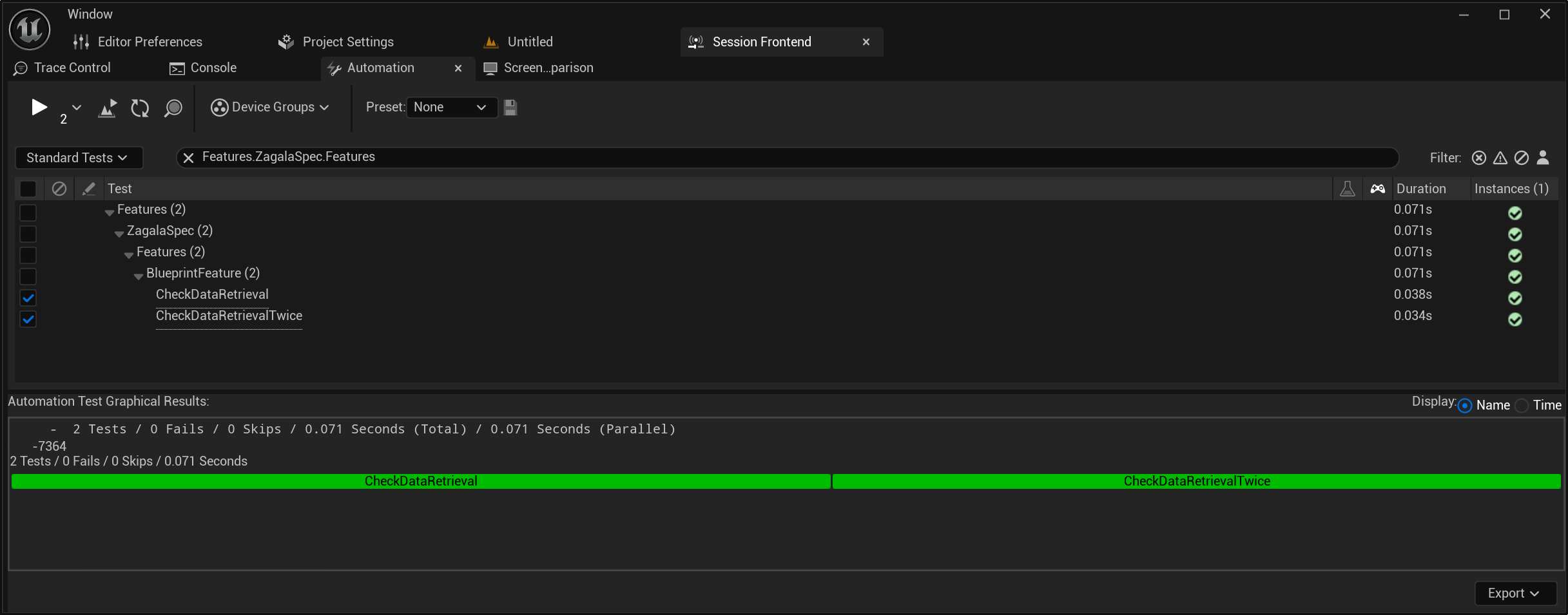
What you just ran is a feature: a small specification of behaviour, stored as an asset, executed as two automation tests. The names in the list are the feature’s and scenarios’ identifier tags with Features. in front.
Read it#
In the Content Browser, enable Settings > Show Plugin Content if it is off, then open
Plugins > ZagalaSpec Content > DEMO > Data > BlueprintFeature.Double-click
DA_BlueprintFeature. The ZagalaSpec Feature Editor opens.
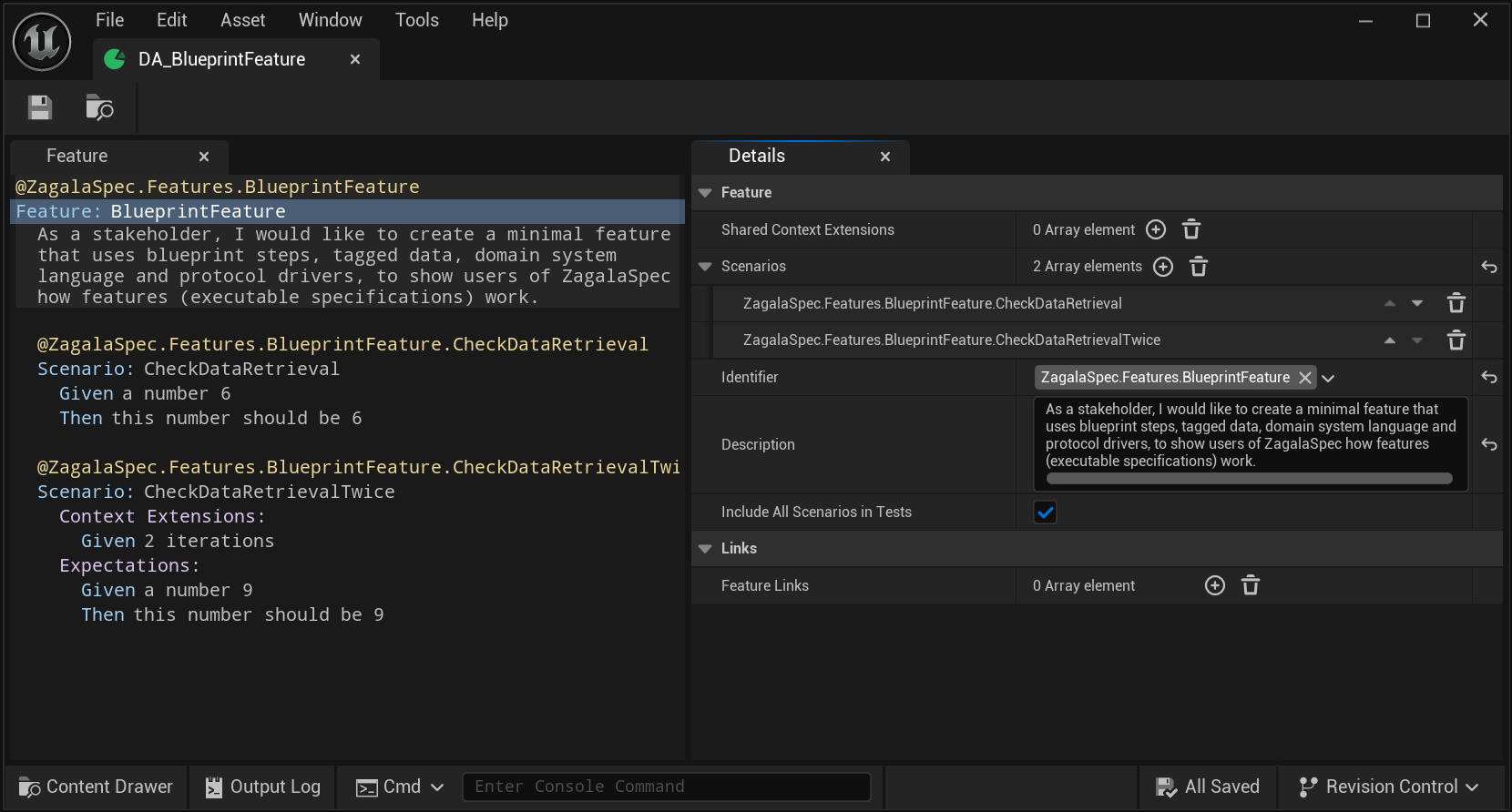
The Feature tab reads like a document:
Feature: Blueprint Feature
  As a stakeholder, I would like to create a minimal feature that uses blueprint
  steps, tagged data, domain system language and protocol drivers, to show users
  of ZagalaSpec how features (executable specifications) work.

  Scenario: Check Data Retrieval
    Given a number 6
    Then this number should be 6

  Scenario: Check Data Retrieval Twice
    Context Extensions:
      Given 2 iterations
    Expectations:
      Given a number 9
      Then this number should be 9
Each scenario is one test. Each line under it is a step: a sentence that ZagalaSpec recognised and connected to a small piece of logic. The second scenario has a context extension, a setup step that makes the two expectation steps run twice.
Click any line and look at the Details tab. For a step you will see its Definition (the sentence) and, further down, Matched Step Entry: the rule that recognised it. That is the whole trick: a sentence, a rule that understands it, and logic behind the rule.
Break it#
Select the line
Then this number should be 6in the first scenario.In Details, change Definition to
Then this number should be 7. Wait half a second; the step re-matches (same rule, new value).Press Check in the scenario’s Details, or go back to the Session Frontend, press Refresh Tests and run
CheckDataRetrievalagain.
The scenario is red. The message pane shows the reason the step reported, along the lines of given number 6 does not match expected number 7.
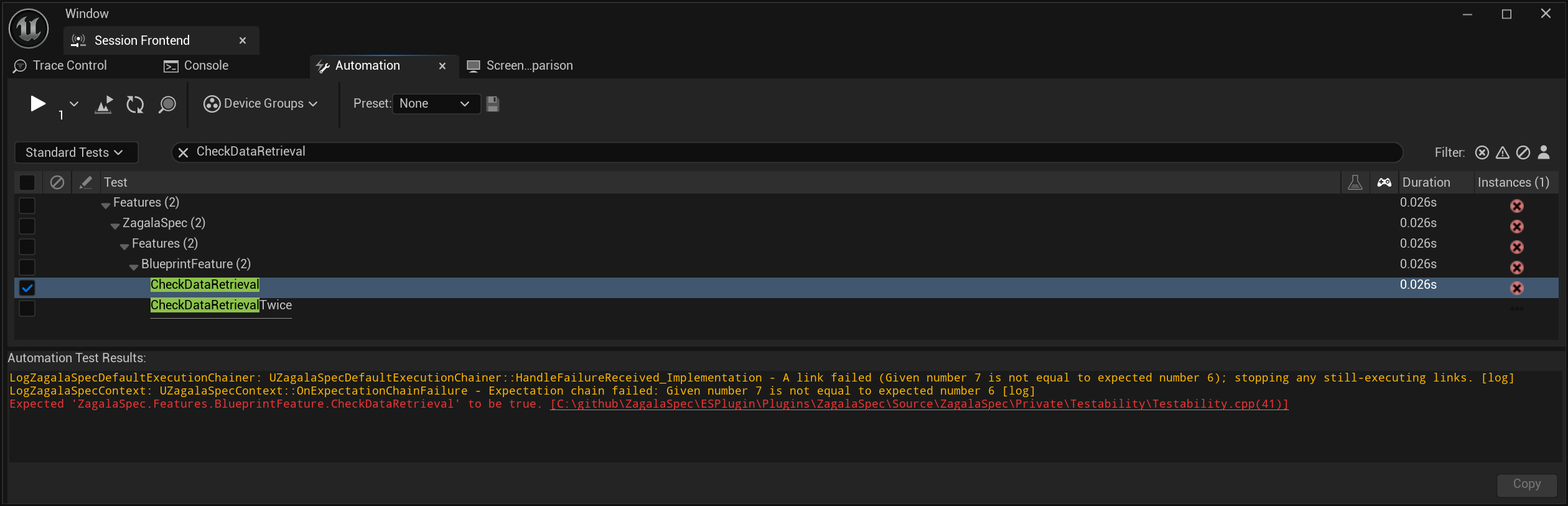
That message was written by whoever implemented the step, in product terms. When a scenario fails in your project, this is where the explanation lives.
Fix it#
Change the Definition back to Then this number should be 6, save the asset (Ctrl+S), run again. Green.
What you learned#
A feature is an asset; its scenarios are automation tests named
Features.<tag>.Steps are sentences; a sentence is useful only if a step entry recognises it (Matched Step Entry is not empty).
Changing a value in a sentence changes the test. No code was touched.
Failures carry a reason written by the step.
Next: 2. Anatomy of BlueprintFeature opens the twelve assets behind these six lines, or skip to 3. The Counter feature for a richer feature.